Transferring Backups from Any Android to Android Device
Why is this Useful?
If you have a ton of favorited channels, hidden categories, channels, and categories sorted manually, then you can simply transfer all the settings over without needing to go through the painstaking process of doing it all over again on the new Android device.
This process does not require access to a PC, USB, or any third-party devices. However, it does require having a Dropbox account. Please go to Dropbox’s website and create a free account.
Steps to Transfer Backups
Follow the steps carefully to ensure a smooth transfer of your backups.
Step 1:
On the device you are transferring the backup from, please go to the Play Store/App Store and download X-plore File Manager. Once installed, open the app.
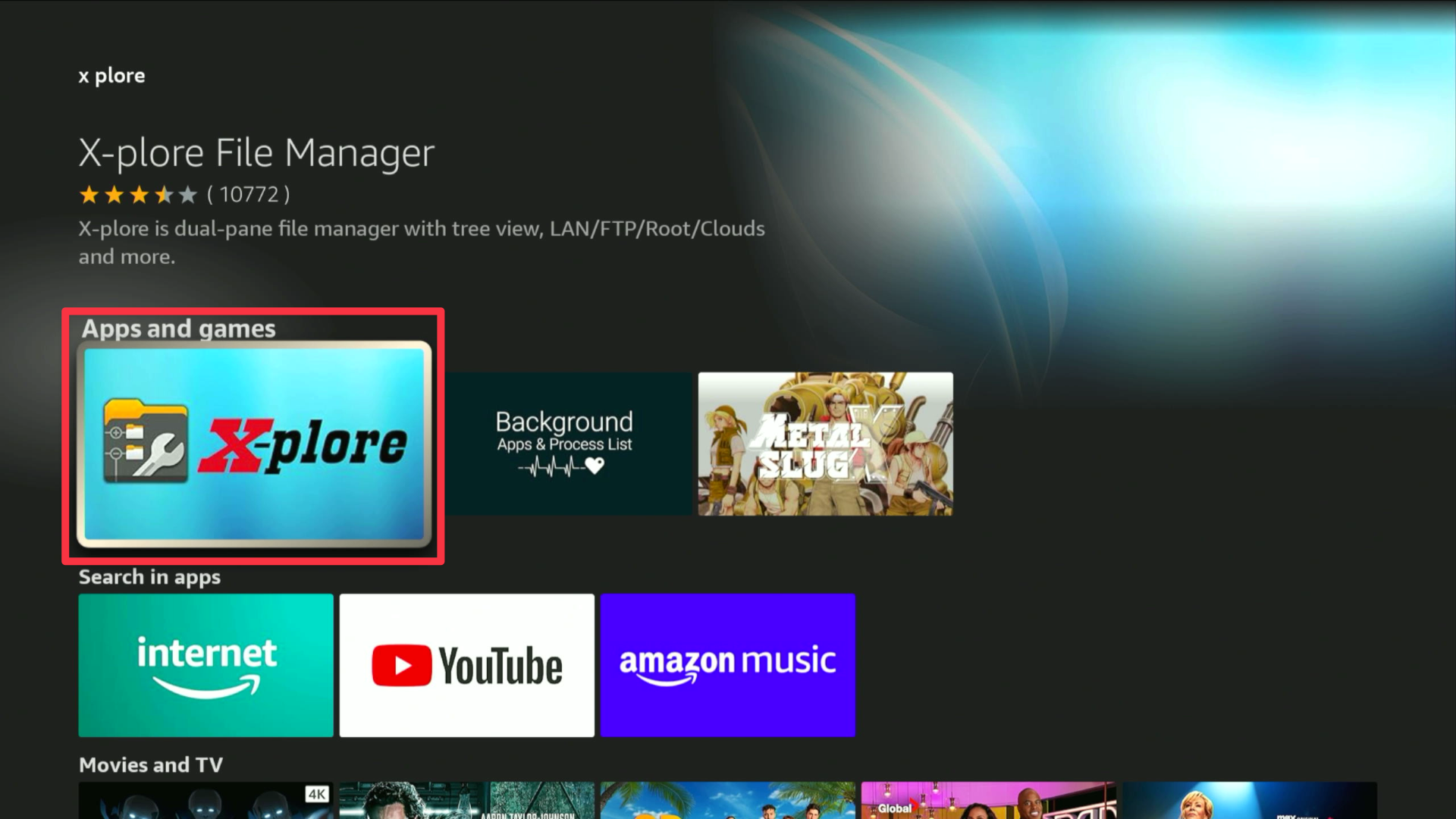
Step 2:
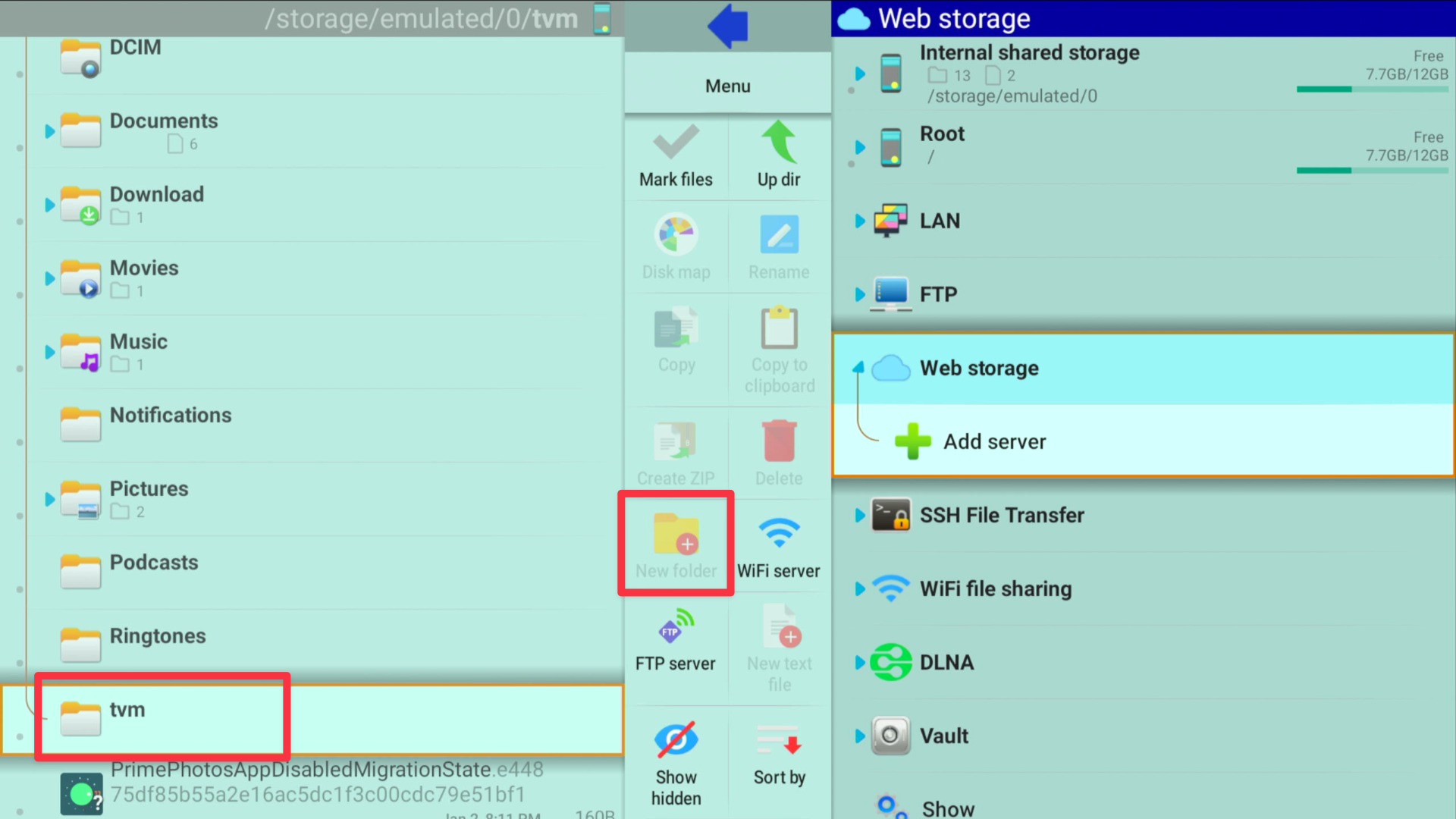
Using your remote, click New Folder and name it “Tivimate Back up” or whatever you’d like. In this example, it is named “tvm”.
Step 3:
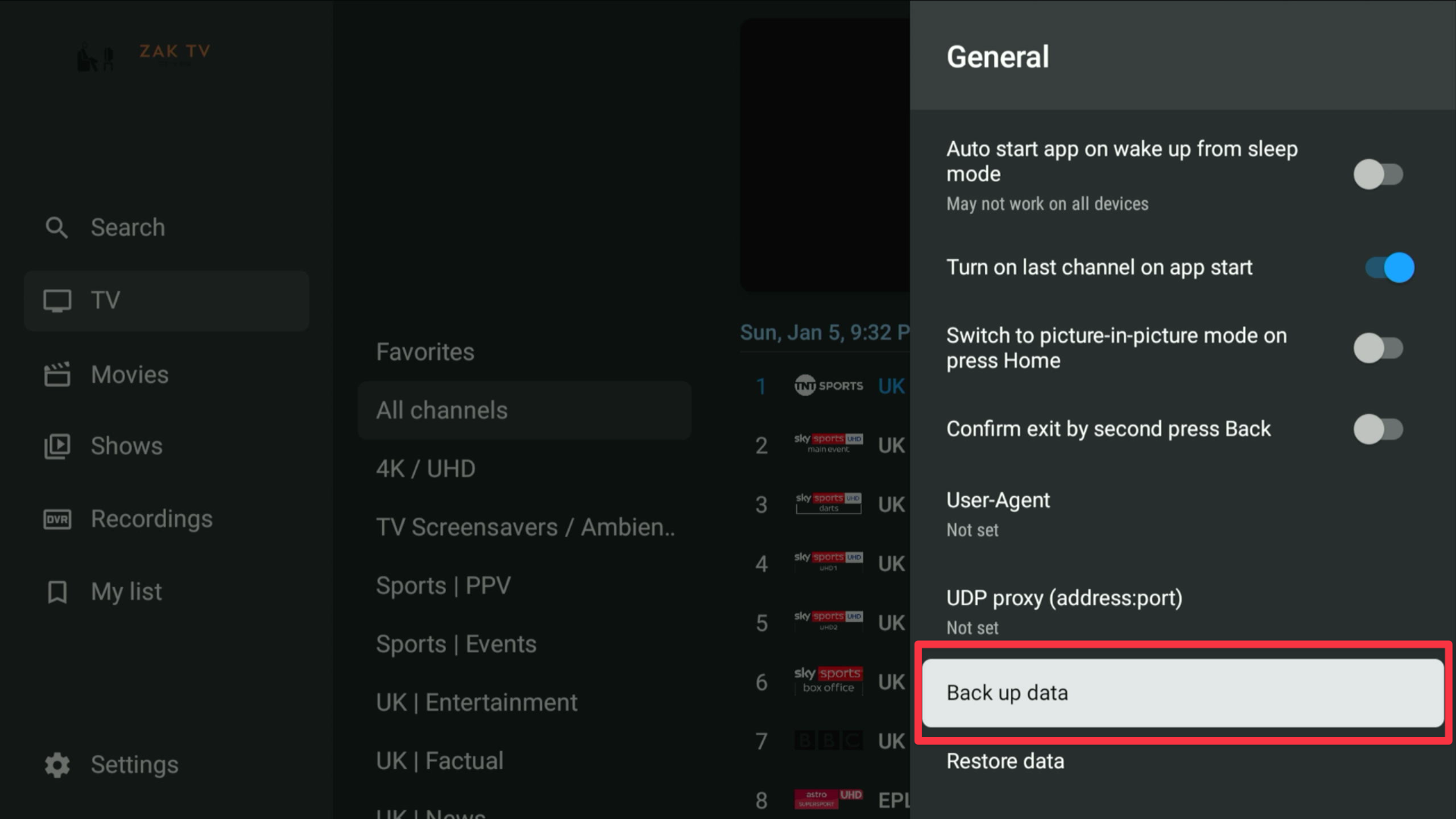
Exit out of X-plore and open ZAK Tivimate. Head over to Settings -> General -> Back up data, select the tvm folder, and select Save.
Step 4:
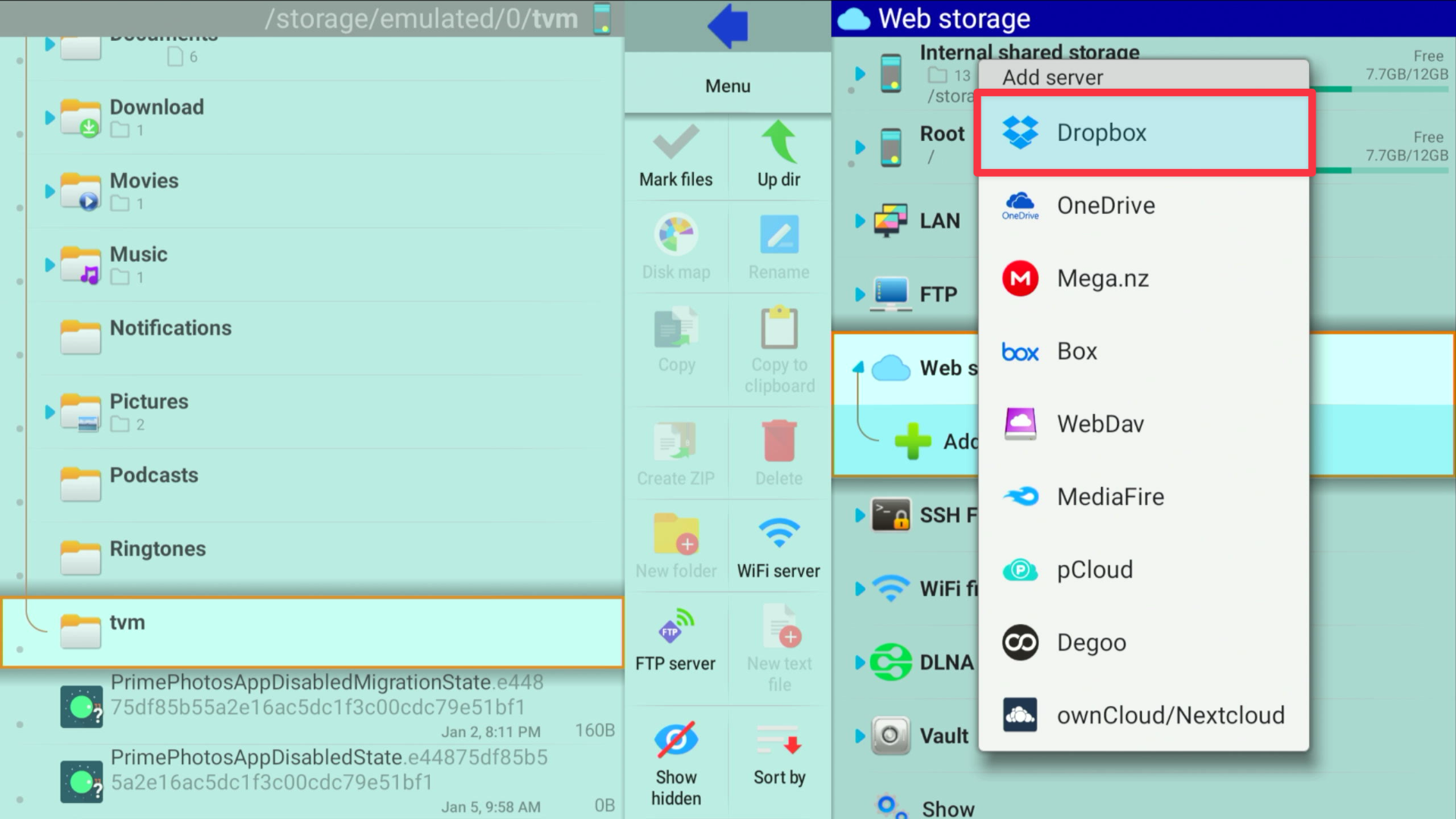
Go back to X-plore File Manager and on the right side select Web storage -> Add Server.

Step 5:
Sign in to your Dropbox Account.
Step 6:
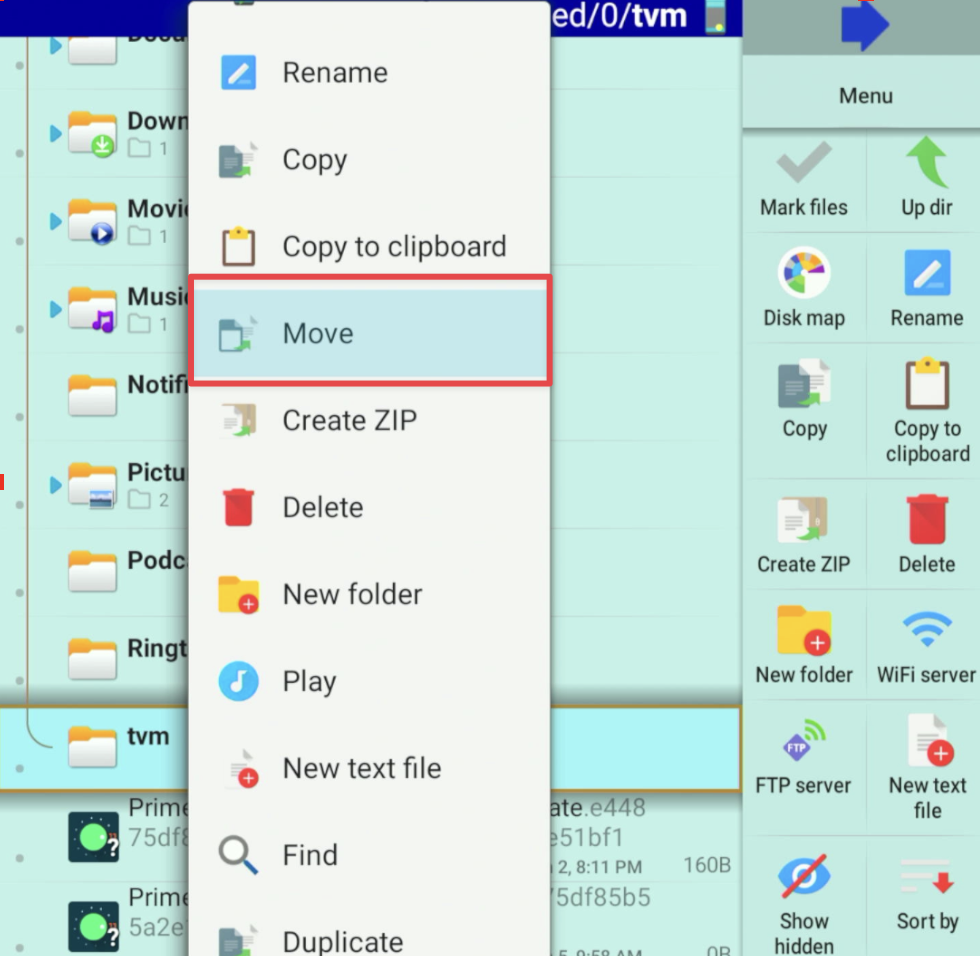
Once signed in, go to the left and hold down the select button on the folder with the TiviMate back up in it. Select Move and move the folder to your Dropbox. You should see the folder with the Tivimate back up on the right side now.
Step 7:
Go to the new device to which we are restoring the Tivimate backup and download X-plore File Manager on that device. Please refer to Step 1 if needed.
Step 8:
Sign in to your Dropbox account. Please refer to Step 5 if needed.
Step 9:
You will see the folder created in Step 2 on the right side. Navigate over to the backup folder and hold down the select button. Move the folder to the device’s internal storage.
Step 10:
If ZAK Tivimate needs to be installed, please refer to the Zak Tivimate app and return to step 10 once successfully downloaded and installed.
Navigate to Settings -> General -> Restore data. Select Local Backup -> Internal Storage and scroll down until you see the backup folder transferred from Dropbox in Step 6.
Step 11:
Select the backup file and click Restore.
Congratulations! You now have all the settings, favorites, and other tweaks done on your original device moved over to the new Android device!